

The complete guide
How to Choose a 1080p Webcam with Microphone for Work, Study and Streaming
The problem with the camera you already have
Most people discover their laptop camera is bad in the worst possible way, halfway through a job interview or a client call, when someone says "you're a bit dark, can you move?" Built-in cameras are squeezed into a thin screen lid, which limits how much glass and sensor the maker can fit. The results are predictable. Soft detail, grainy shadows, washed-out color and a viewing angle that is usually too tight.
The microphone has the same problem. It sits inside a laptop body that hums and clicks, often next to a fan. You end up with a thin voice, keyboard noise on every keystroke and a general sense that you are talking from inside a box.
A separate USB webcam solves both at once. It is one of the cheapest upgrades you can make to how you come across on a call, and it takes about thirty seconds to set up.
What 1080p actually buys you
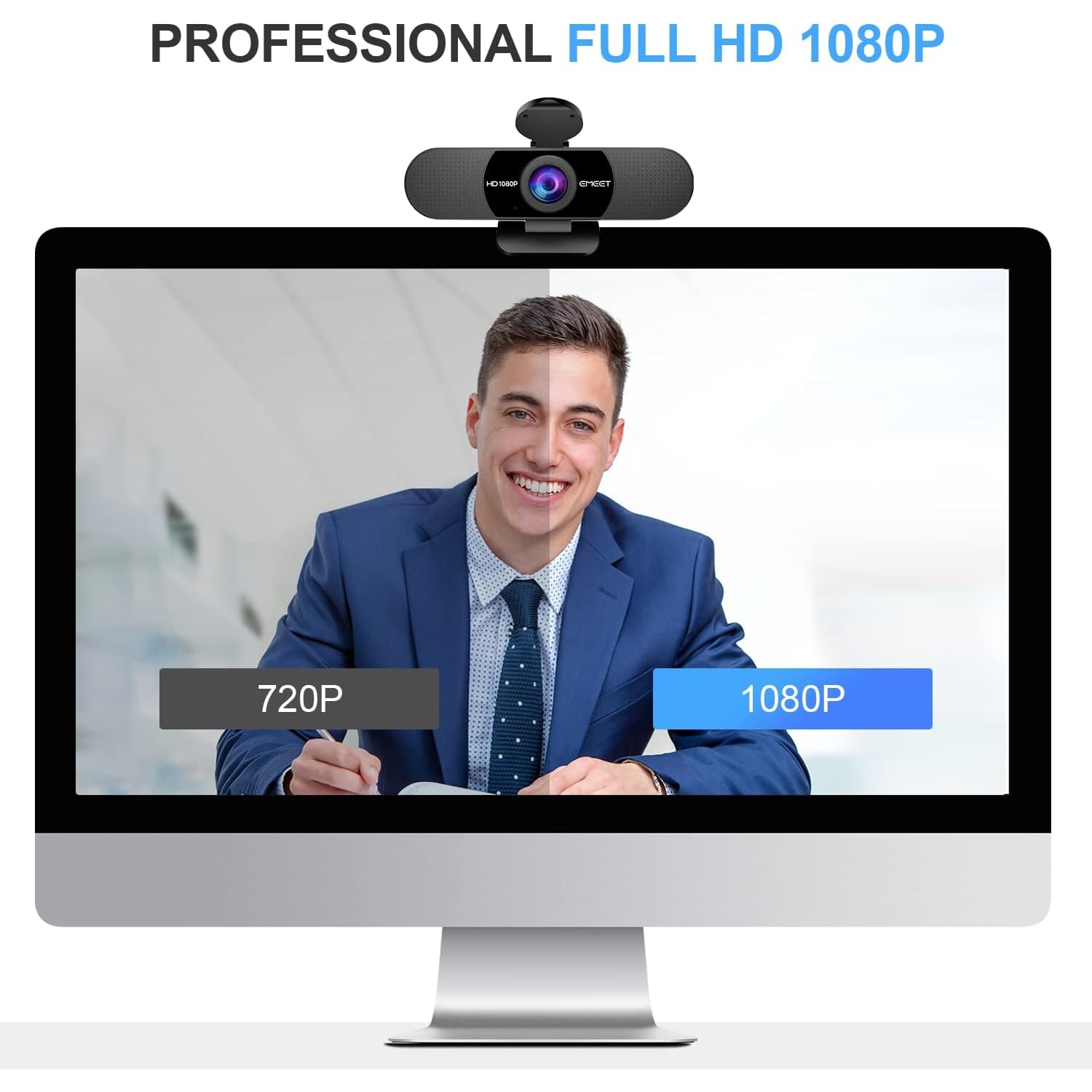
Resolution is the number everyone quotes, and 1080p means 1920 pixels across by 1080 down. That is more than twice the pixel count of 720p, which was the standard for years on cheap cameras. In practice you see it in the edges of your face, the text on a whiteboard behind you and the detail in clothing.
Here is the honest caveat. Most meeting platforms compress video hard, especially when several people are on the call. You do not always get full 1080p to the far end. But starting with a better picture means the compressed version still looks better than a compressed 720p feed. And when you record locally, or when you stream to one platform with a decent bitrate, the full resolution shows.
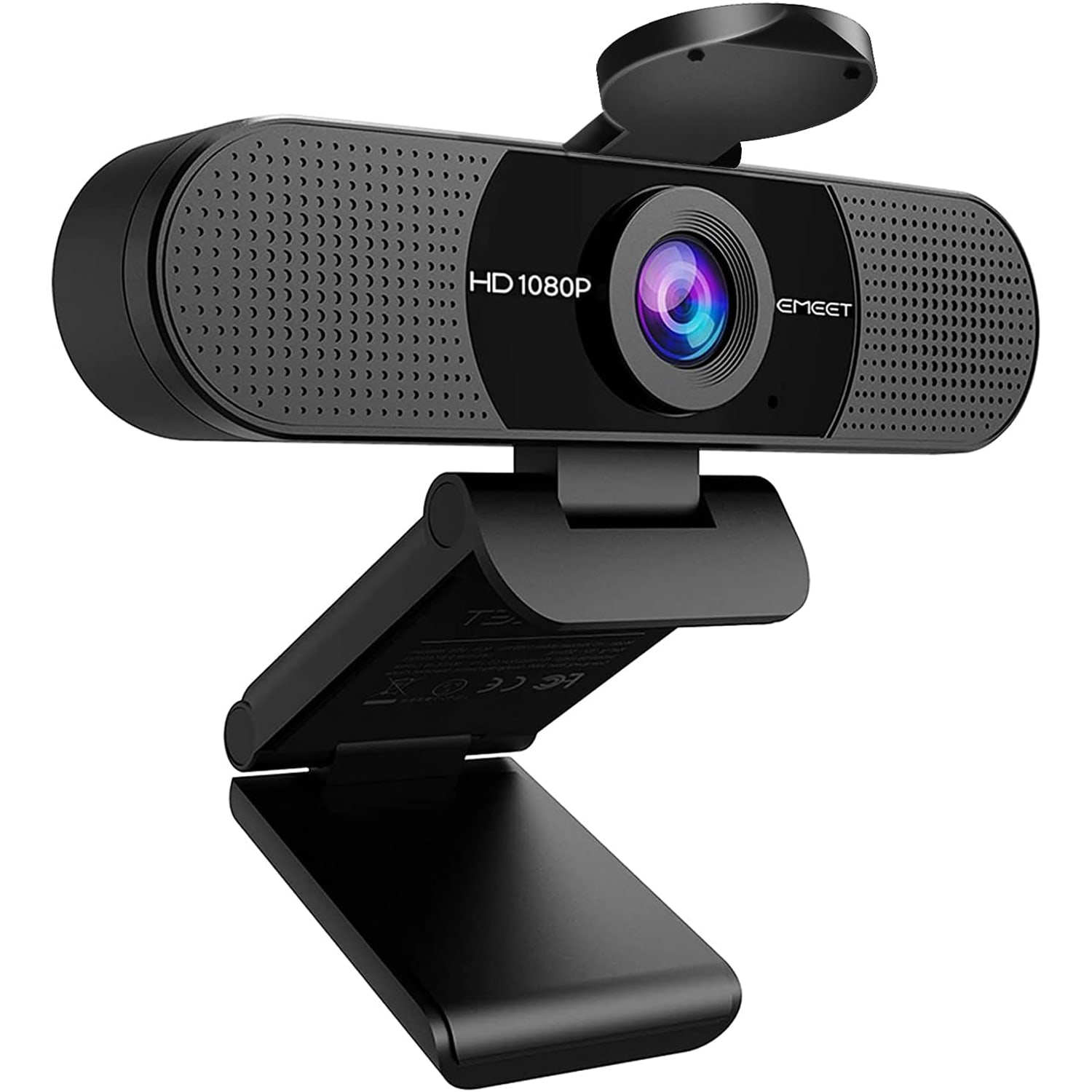
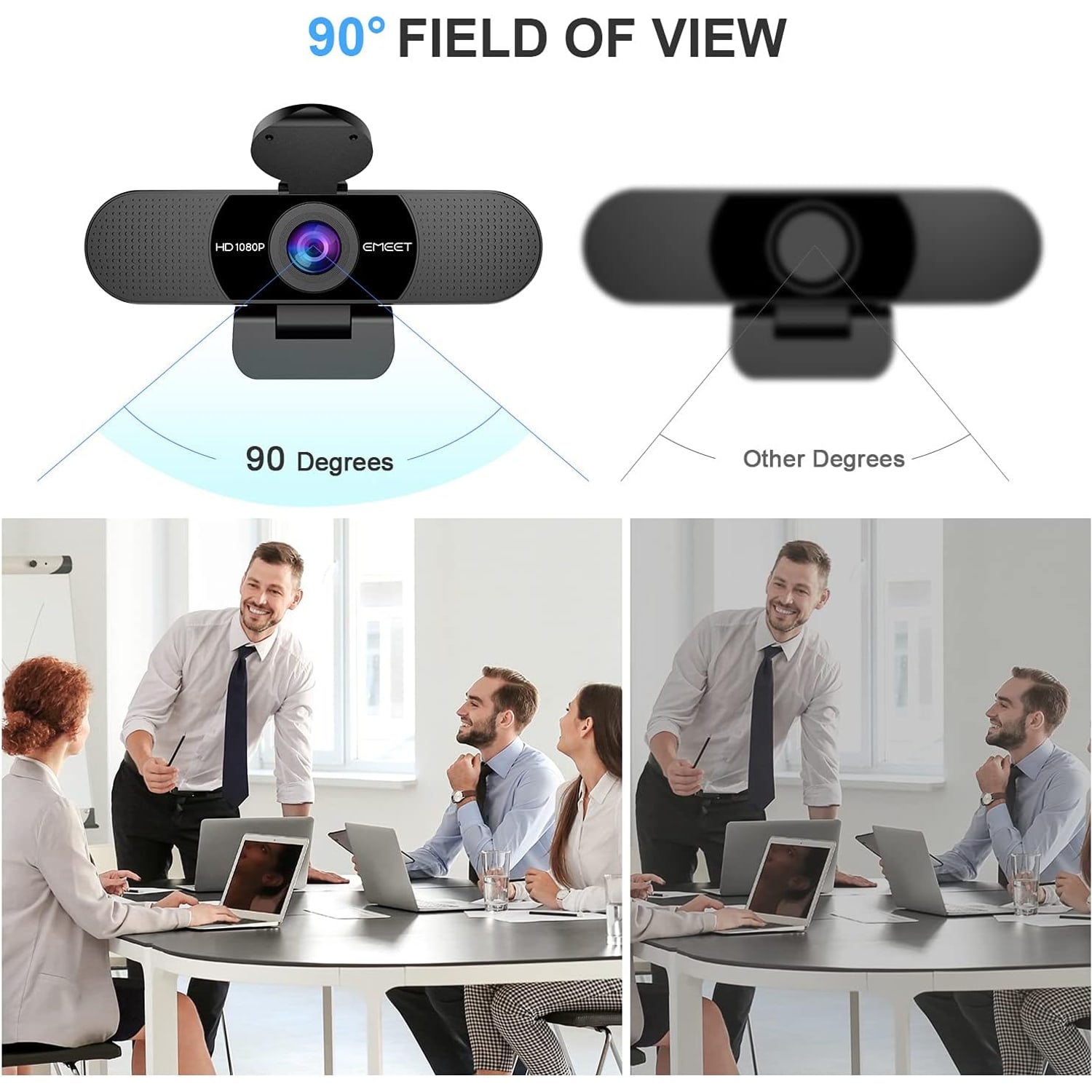
This camera uses a CMOS sensor behind a fixed focus wide-angle lens at f/2.8, with a 90 degree field of view and a 16:9 frame. Still images come out at 2 MP in JPEG. Video capture format is listed as AVI.
Fixed focus versus autofocus
Autofocus sounds better on a spec sheet. In a webcam it is often a nuisance. Autofocus systems hunt. You lift a coffee cup, the camera decides the cup is the subject, and your face goes soft for a second before snapping back. On calls, that pulsing is distracting.
Fixed focus avoids all of it. The lens is set for a useful working range, which the maker gives as 11.8 to 118.1 inches, and as long as you sit at a normal desk distance you stay sharp. The trade-off is that you cannot hold a document right up to the lens and expect it to read. For talking heads, which is what nearly everyone does, fixed focus is the more reliable choice.
Why two microphones matter
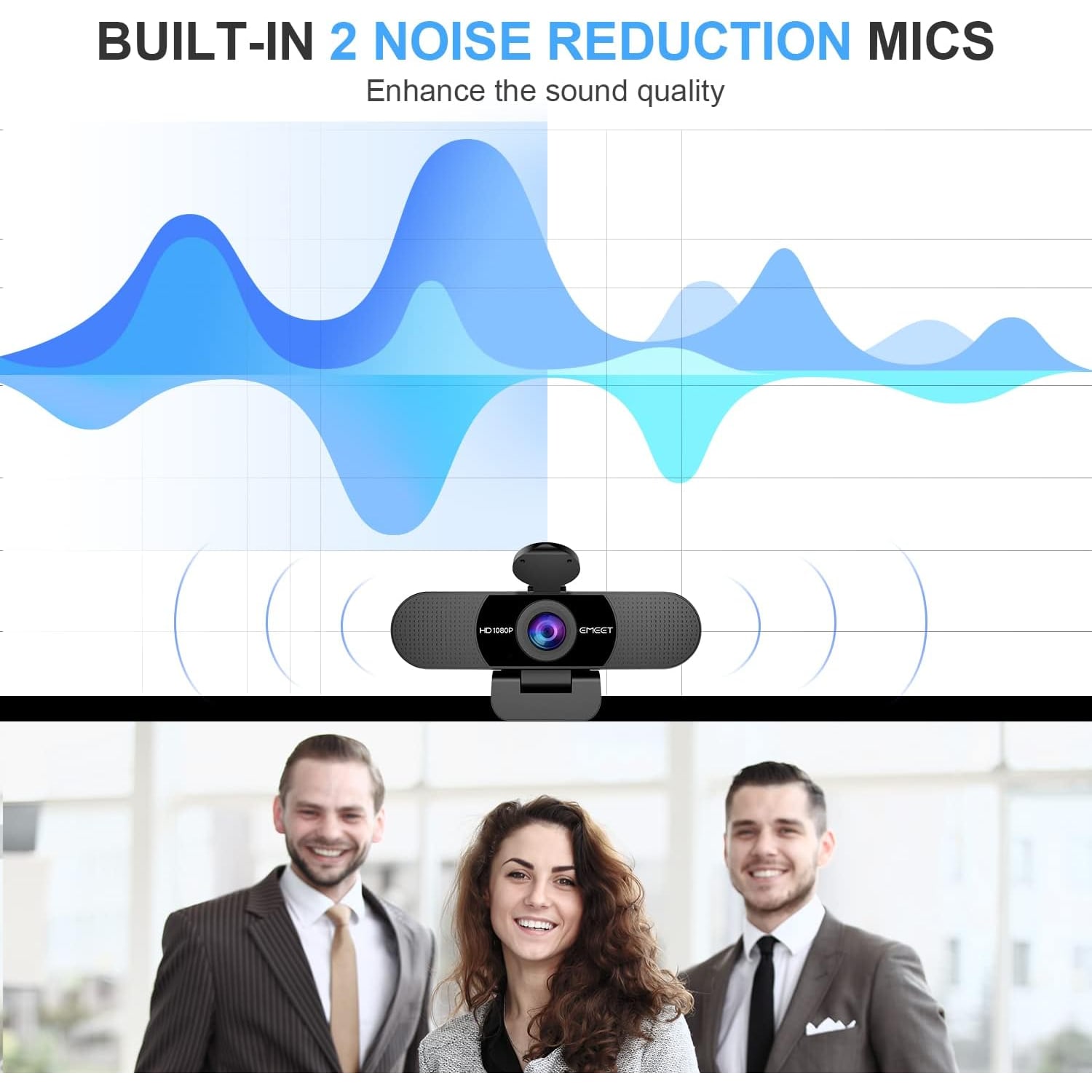
A single microphone captures sound from one point. Two omnidirectional mics give the camera more to work with, and the maker describes them as picking up your voice and filtering out background noise.
Steady noise is what this handles best: a fan, an air conditioner, a fridge, road hum through a window. Sudden noise, like a door slamming or a dog, will still get through. No microphone at this size fixes that.
One setup note that catches people out. Plugging the camera in does not automatically switch your audio. Go into your meeting software's audio settings and choose the webcam (the maker says it appears as C960) as the microphone, otherwise your computer keeps using its own. Do it once and most systems remember.
Light is the part nobody tells you about
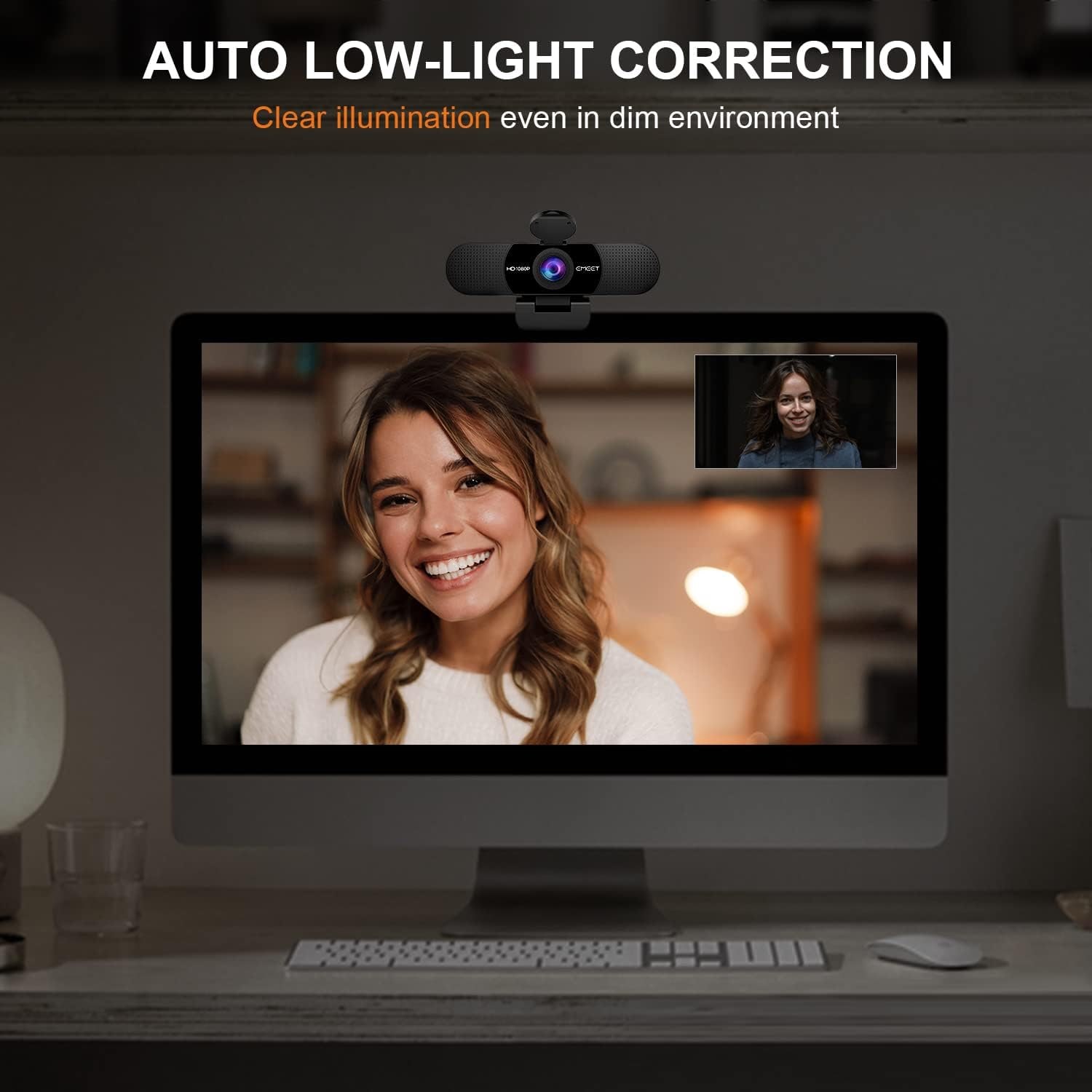
You can spend a lot on a camera and still look bad if the light is wrong. Small sensors need light. When they do not get enough, they amplify the signal and you see grain.
This camera applies automatic low-light correction, auto exposure and auto white balance, so it does what it can on its own. It brightens dim rooms and tries to balance a scene where one part is much brighter than another. That helps if you sit near a sunny window and do not want to keep closing the blind.
But the single best thing you can do costs nothing. Put the main light source in front of you, not behind you. A desk lamp bounced off a wall, or simply turning your desk to face the window, will do more for your image than any menu setting. If you want to go further, a cheap LED panel at eye level on one side gives a soft, flattering result.
Who this camera suits
It is a good fit for daily meetings, remote work, online classes, tutoring, interviews and casual streaming. The 90 degree angle means two or three people can share it at a desk without squeezing together, which is useful for couples on family calls or a pair of colleagues joining from one room.
It suits travel too. The clip folds flat, the whole thing weighs about 0.16 kg and it measures roughly 4.88 by 2.65 by 2.04 inches. It disappears into a laptop sleeve.
It is less suited to a large conference room, where you want a wider lens and room-wide microphone coverage, and it is not a replacement for a dedicated camera if you are doing high-end production work. For everything between those two extremes, it does the job.
Mounting and placement
The foldable clip grips a monitor bezel or a laptop lid, and it flattens so the camera can stand on a desk or a shelf. The clip is tripod ready if you would rather use a small stand, which is genuinely useful when your monitor has a thick frame or an odd shape.
Aim for eye level. Cameras below your face look up your nose and make the ceiling the main background. Cameras far above make you look down and shrink your presence on screen. A stack of books under a tripod is a perfectly respectable solution.
Also think about what is behind you. A 90 degree lens catches more of the room than you expect. A plain wall, a bookshelf or a tidy corner all read better than an open doorway.
Privacy, in simple terms
There is a cover that closes over the lens. In the product photos it is a round cover on a hinge above the lens. When it is closed, the camera cannot see anything, full stop. That is a mechanical fact rather than a software promise, which is why a lot of people prefer it.
On audio and recording other people, the sensible line is this. Recording conversations and recording other people is covered by federal and state law, and the rules vary. If you plan to record meetings, check what applies where you are.
Care and everyday handling
Treat the lens like glasses. A dry microfiber cloth, light pressure, no sprays or solvents. A smear on the front element softens every frame you shoot, and it is the most common reason a camera suddenly looks worse than it did last month.
Keep the body dusted with a soft dry cloth. The camera is not water resistant, so keep drinks away from it and do not use it outdoors in wet weather. Unplug by gripping the connector rather than yanking the cable, and fold the clip with the cover closed when you put it away.
If the picture ever stutters or the device drops out, the usual culprit is the USB connection. Try a port directly on the computer rather than an unpowered hub, and avoid long extension cables where you can.
The short version
If your calls look grainy and sound thin, a dedicated webcam fixes both problems for less than the price of a decent headset. This one gives you Full HD at 1920x1080, a 90 degree wide view, two noise-reducing microphones, automatic low-light handling, a privacy cover and a clip that works on a monitor, a laptop or a tripod. There are no drivers to install and it runs on Windows, macOS, Linux and Android TV.
Point a light at your face, set the camera at eye level, pick it as your microphone in your meeting app, and you are done.