
The complete guide
How to Choose a 1080p Webcam That Actually Looks Good on Calls
The problem with the camera you already have
Almost every laptop has a camera. Almost none of them are any good. Manufacturers put the lens inside a lid that is a few millimeters thick, which forces a tiny sensor behind a tiny piece of plastic. The result is a soft, noisy picture that falls apart the moment the light drops. You have seen it on calls. Faces look flat, colors drift toward gray or orange, and movement smears.
That is annoying on a chat with a friend. It is a real problem when you are interviewing for a job, teaching a class, presenting to a client or streaming to people who chose to watch you. An external camera is one of the cheapest upgrades you can make to how you come across, and this one is plug and play.
What 1080p at 30 frames per second actually means
Two numbers get quoted on every webcam box. Resolution is how much detail the image holds. Frame rate is how many pictures per second it sends.
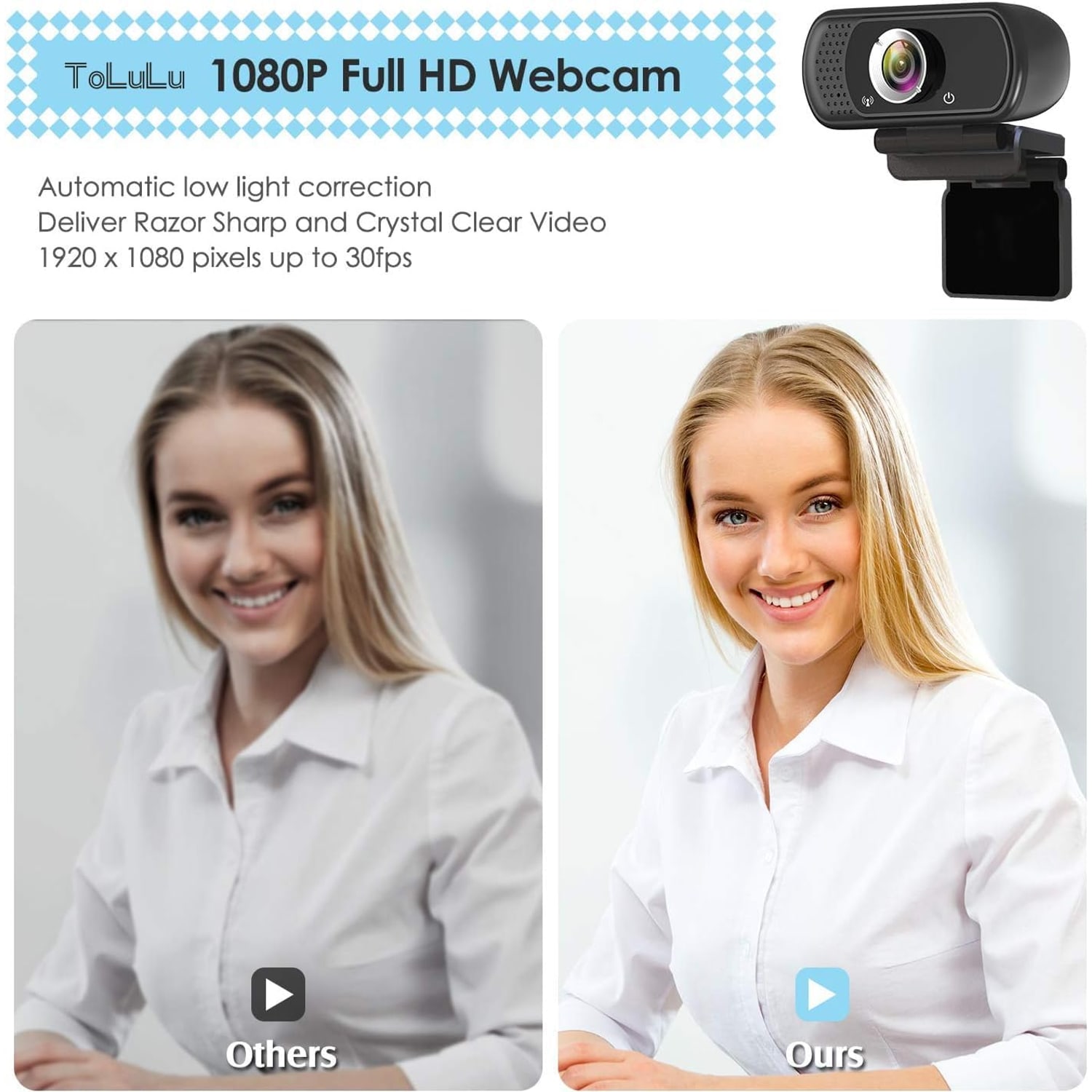
1080p means the image is 1920 pixels wide by 1080 tall. That is roughly double the detail of the 720p camera in a typical laptop lid. On a full-screen call it is the difference between readable facial expression and a vague impression of a person.
Thirty frames per second is the smoothness number. At 30fps, hand gestures and head turns look natural. Below that, movement starts to look like a flip book. Higher frame rates exist on premium cameras, but 30fps is the standard that meeting platforms are built around, and most of them compress your video down anyway before it reaches the other end.
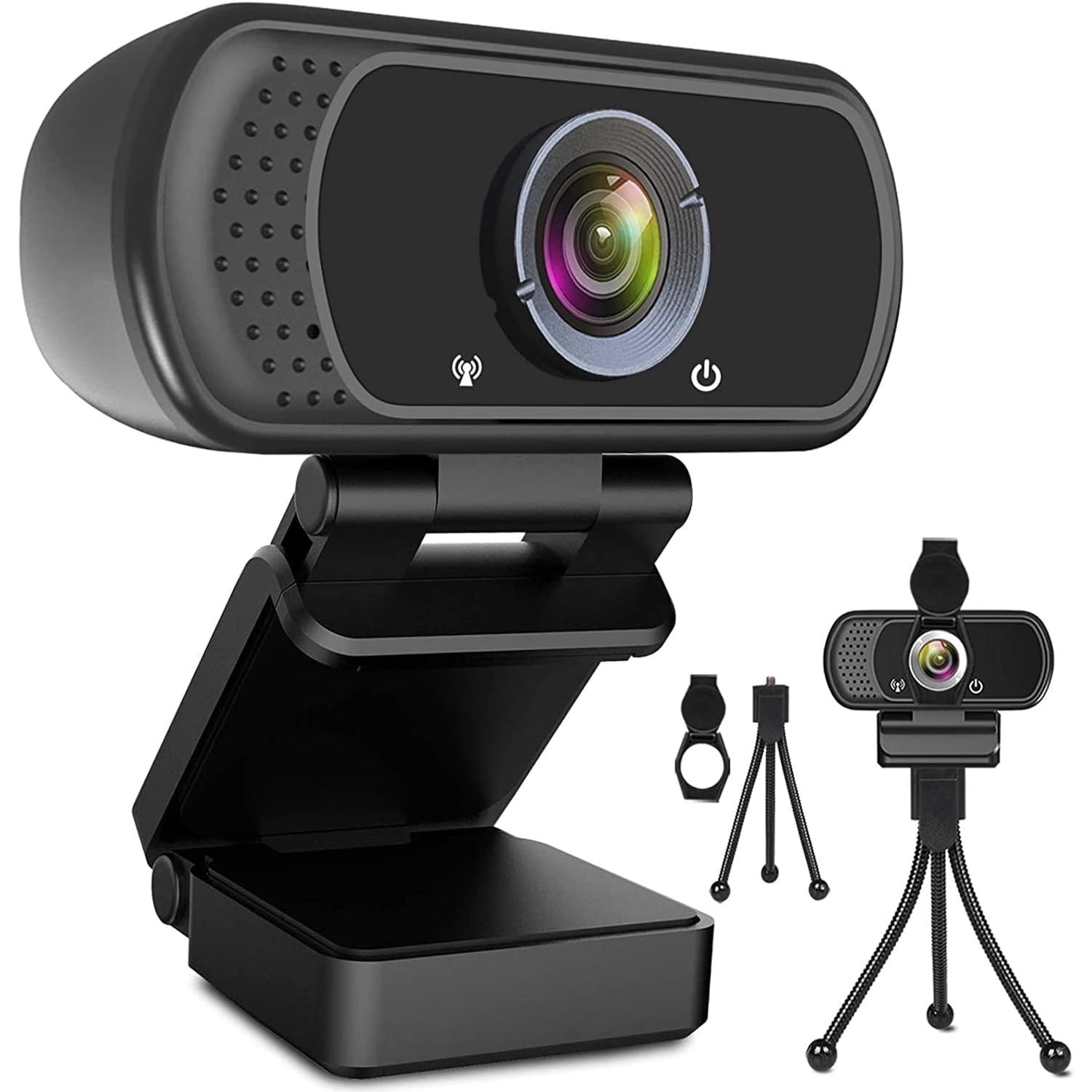
This camera does both: 1080p and 30fps, through a CMOS sensor and a glass wide angle lens. The maker also names HD and VGA alongside FHD as display resolutions.
Field of view, and why 110 degrees is a choice
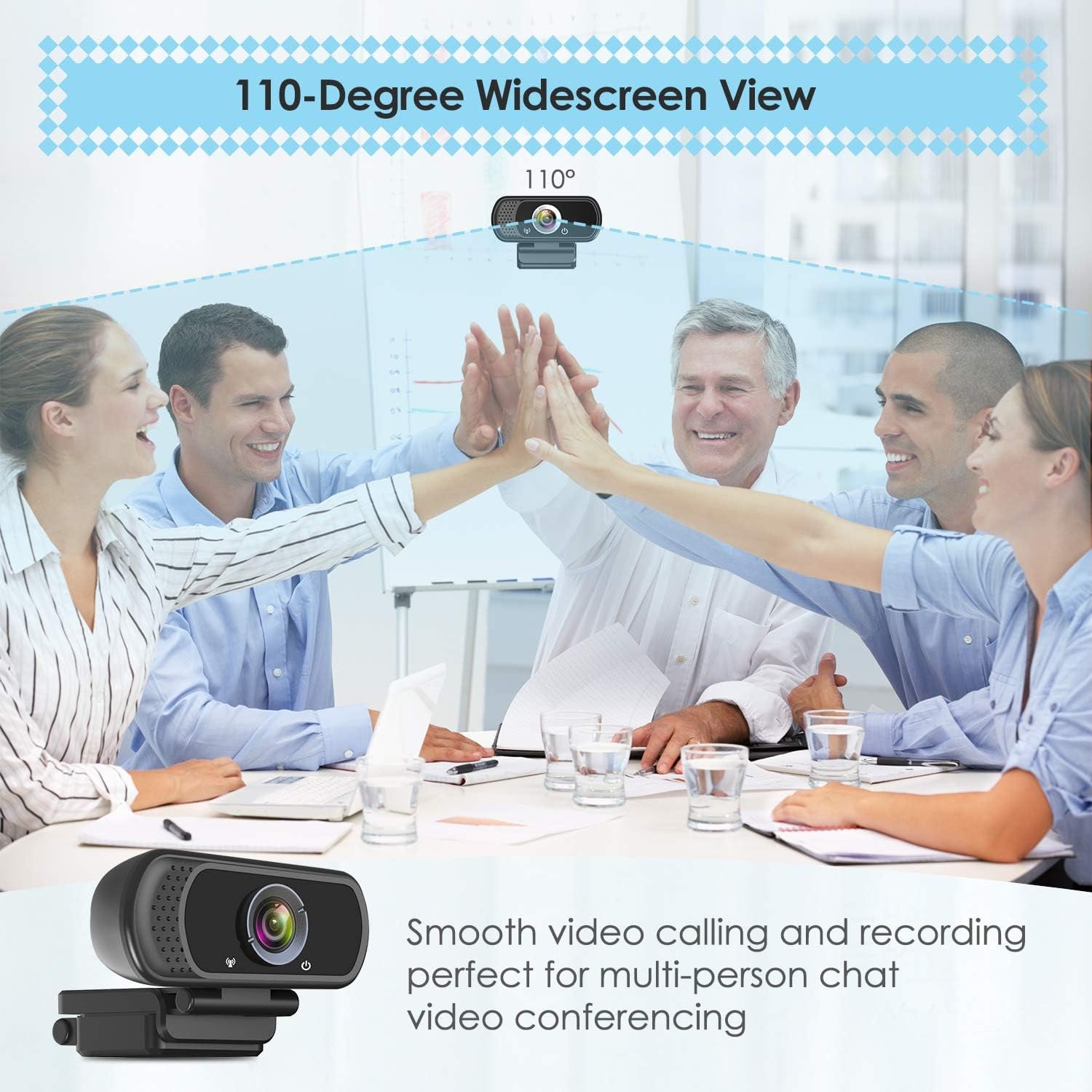
Field of view is how wide the camera sees. Narrow views, around 65 to 78 degrees, frame one person tightly and crop out the mess behind them. Wide views, 90 degrees and up, take in the room.
This one sees 110 degrees. That is firmly in the wide camp. It suits you if two people need to be on screen, if you want to show a desk, a whiteboard or a workbench, or if you sit close to the monitor in a small apartment and a narrow lens would crop your head. It is less ideal if your background is chaotic and you want it gone, though most meeting apps now blur backgrounds in software.
One honest note about wide lenses: they stretch slightly at the edges. If you sit dead center you will never notice. If you sit off to one side of the frame, shift your chair rather than the camera.
Fixed focus versus autofocus
Autofocus sounds like the better feature, and on expensive cameras it is. On budget cameras it can be a liability. Cheap autofocus motors hunt. You lean forward, the image goes soft for a second, then snaps back. Repeat that forty times in a meeting and it gets distracting.
This camera uses fixed focus, and the maker gives a maximum focal length of 50 centimeters. It is set once and stays there. Sit at normal desk distance and you are inside the sharp zone, with no hunting and no sudden blur. The tradeoff is that holding an object very close to the lens, say a few inches away, will not resolve crisply. If you need close-up product shots, a camera with proper macro focus is a better buy.
Audio, and when the built-in mic is enough
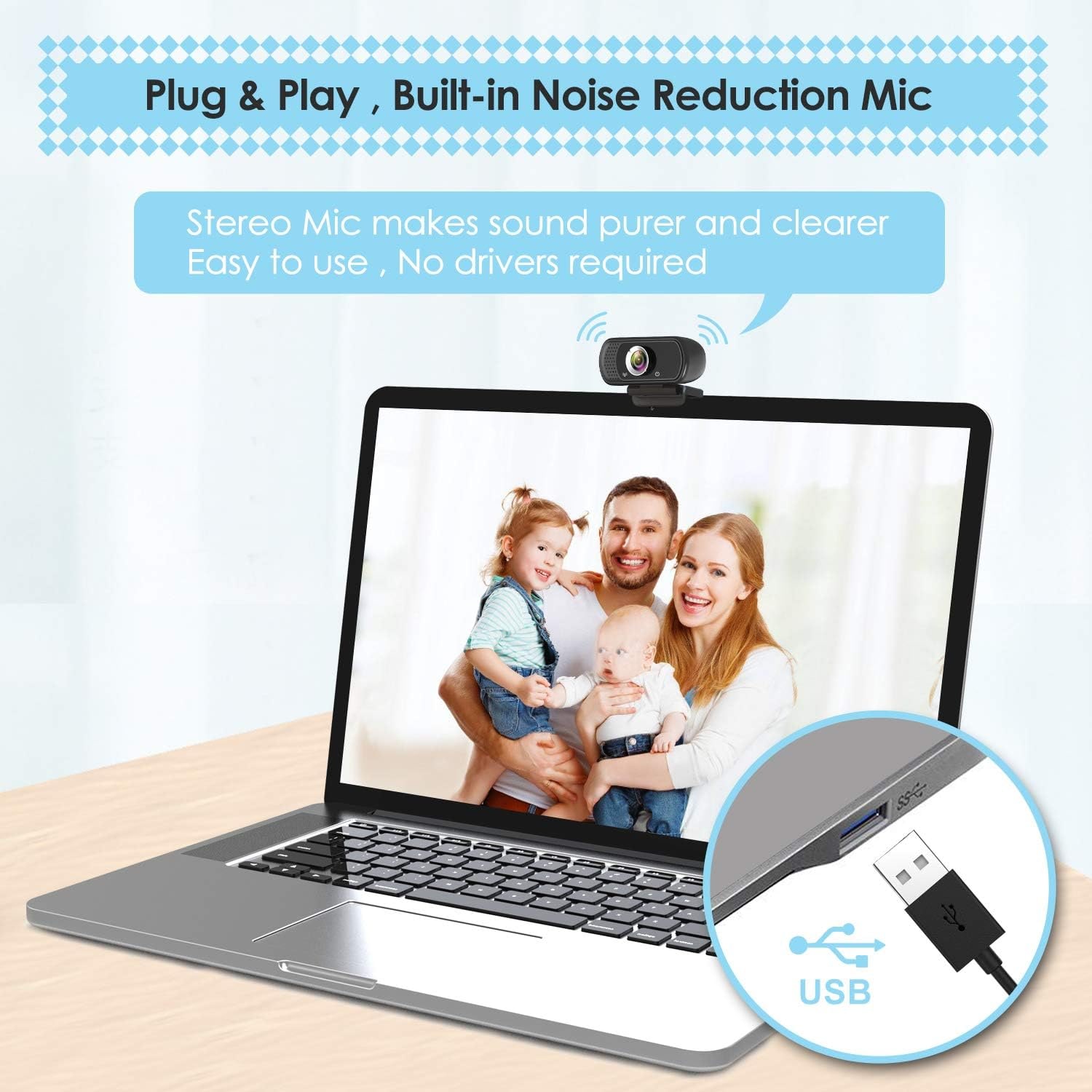
The built-in digital stereo microphone has automatic noise reduction, and the maker says it picks up your voice even at 10ft. For meetings, classes and catch-ups, it is genuinely fine. You can sit at your desk and talk normally.
Where a built-in webcam mic struggles is in a room with hard floors and bare walls, because the mic sits an arm's length away and picks up the echo along with your voice. If that describes your room, a soft rug, a curtain or a few books on a shelf will do more for your audio than any gear purchase. If you are recording content rather than just talking, a dedicated microphone is still worth it eventually. For everything else, one less cable on the desk is a win.
Light does more than any spec
Here is the thing nobody puts on a box. Lighting beats hardware almost every time. A good camera in bad light looks worse than an average camera in good light.
This camera has automatic low light correction and automatic exposure, and the maker says it adjusts color and brightness on its own. That helps. What helps more is moving your light source in front of you instead of behind you. If you sit with a window at your back, the camera sees a bright rectangle and turns you into a silhouette. Turn your desk ninety degrees so the window is to your side or in front, and the picture transforms. A cheap desk lamp bounced off a white wall does the same job after dark.
Mounting: clip, tripod, or both
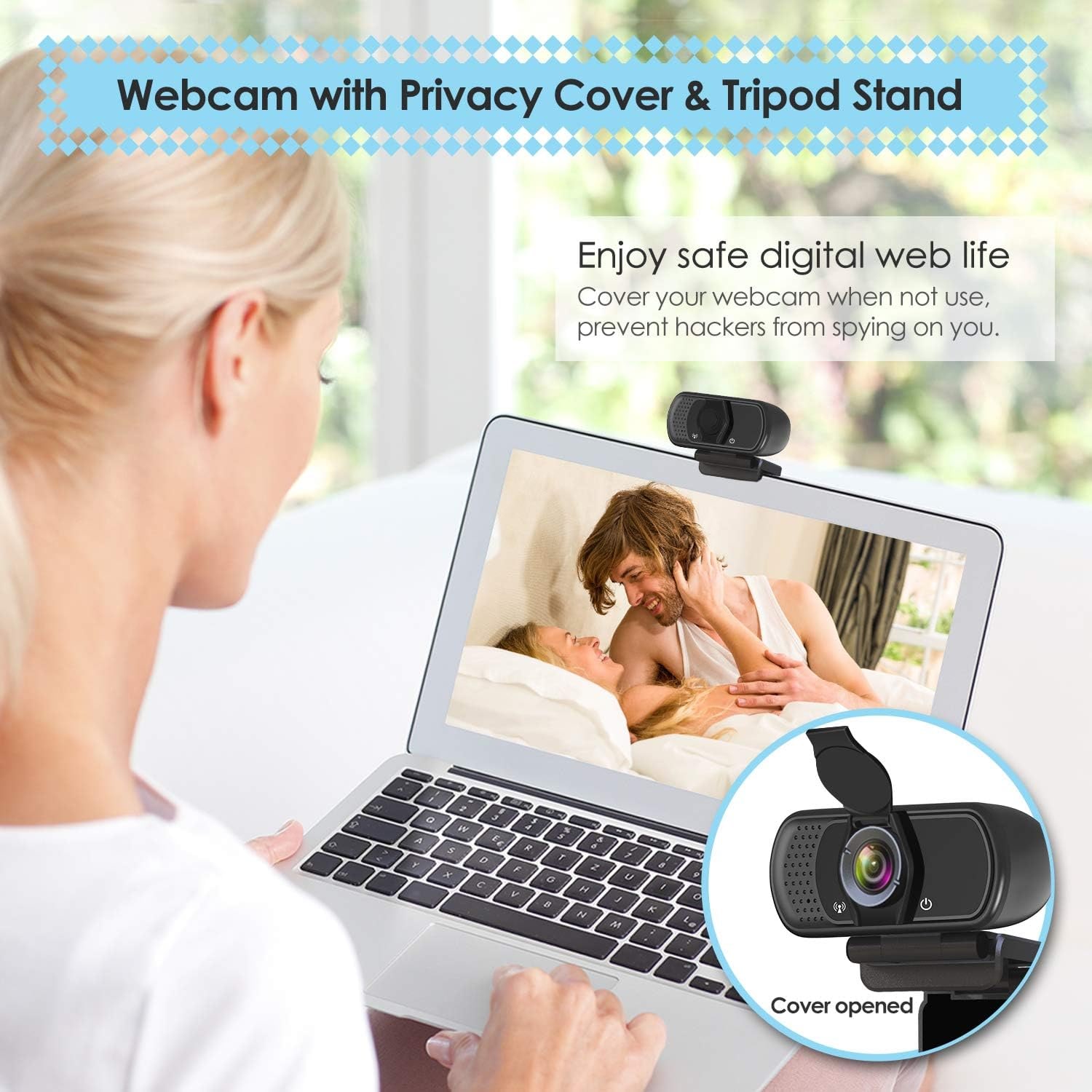
You get two options in the box. The adjustable universal clip fits a laptop, a desktop monitor or an LCD monitor, and it adjusts so you can set the camera angle once it is seated. This is the setup most people use, because eye level is where the camera should be.
The included tripod stand matters more than it sounds. Some monitors have a thick bezel, an unusual curve or a mounting arm that a clip cannot grab. Some people want the camera off to the side to show a second screen or a work surface. Some want to point it down at a desk for a demo. A small tripod handles all of that. The 6 feet USB cable gives you enough slack to place the camera where it needs to be rather than where the port happens to be.
Privacy, without the tape
A privacy cover comes in the box and fits over the lens. Flip it down and the lens is physically covered, regardless of what software is running. It is a mechanical answer to a question that software can never fully settle, and it is nicer than the folded sticky note so many people end up using.
It has a practical side too. A covered lens is a lens that is not collecting dust and fingerprints.
On the related subject of recording, keep in mind that recording audio and recording other people is covered by federal and state law, and the rules vary by state. If you plan to record calls, check what applies where you are.
Setup and compatibility
Plug and play means what it says. Connect the USB cable, open your app, choose the camera from the dropdown. No additional driver is required.
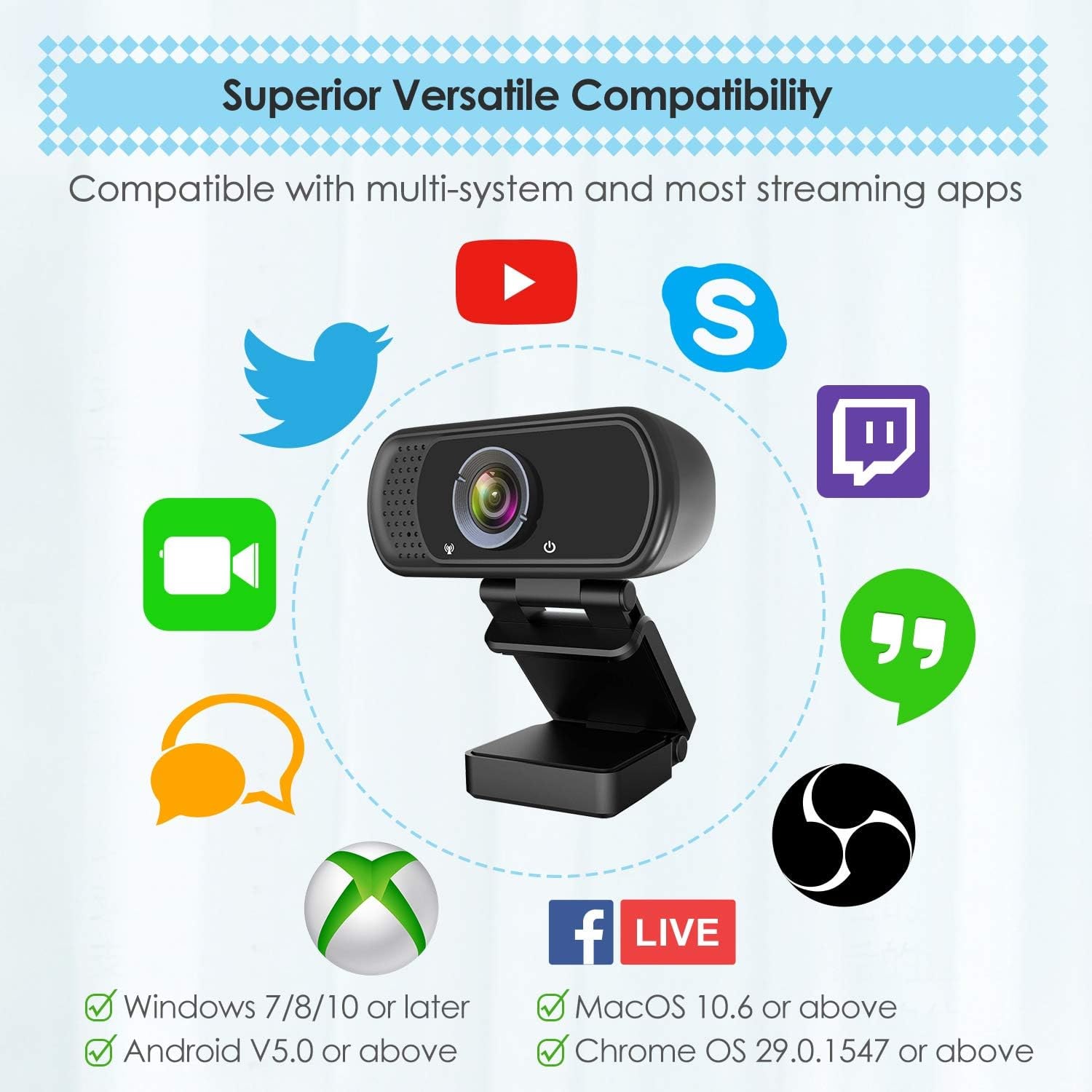
The maker names Windows 2000, XP, 7, 8 and 10, macOS, Chrome OS, Android and smart TVs, and says it is compatible with Skype, OBS, YouTube, Facebook, Twitch, FaceTime, Xbox One and Hangouts. If something does not appear straight away, the usual fixes are a different USB port, closing another app that has already claimed the camera, and checking your operating system's camera permissions for the app you are using.
Looking after it
There is very little to maintain. Wipe the lens with a dry microfiber cloth and nothing else, since alcohol and glass cleaner can haze the lens. Leave the privacy cover closed between uses. Unplug by the connector rather than yanking the cord, and avoid sharp bends where the cable meets the body, because that is where cheap cables fail first. It is not water resistant, so keep it clear of steam and spills.
The short version
If your laptop camera makes you look worse than you do in person, a 1080p webcam with tripod stand fixes that for very little money and almost no setup. You get full HD at 30 frames per second, a 110 degree view that fits two people or a bit of the room, a built-in stereo mic so you can ditch the headset, automatic exposure and low light correction, a privacy cover, and the choice of clipping to a screen or standing it on the included tripod.
It is a sensible pick for meetings, online classes, streaming and family calls. It is not the tool for macro product photography or studio-grade audio. For the work most of us do on camera every week, it covers the job properly. Point a light at your face while you are at it, and you will look better than half the people on the call.