
The complete guide
How to Choose a 4K PTZ Webcam With AI Tracking
The problem with sitting still
Most webcams were designed on the assumption that you are a head in a chair, two feet from a screen, for the entire call. That is not how people actually work. You stand up to draw something. You turn to a second monitor. You hold a product up to the lens and discover it is out of focus and half out of frame. You lean back and now there is more ceiling than face in the shot.
The usual fixes are all compromises. Zoom out and you look distant and small. Sit rigidly still and you look stiff. Buy a camera operator and, well, that is not happening for a weekly team meeting.
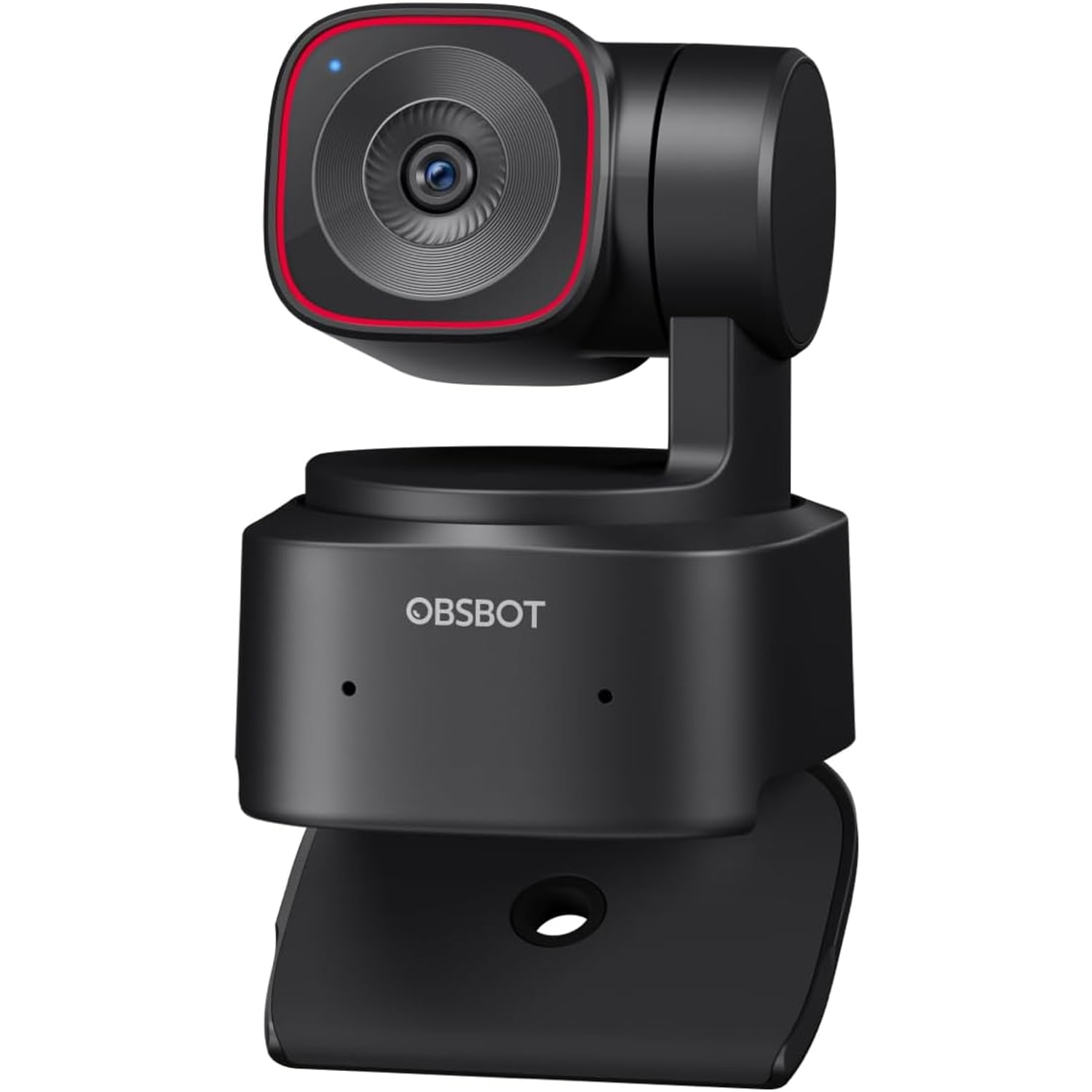
A PTZ webcam takes a different route. The camera head physically moves. Pan and tilt are mechanical, and the AI decides where to aim. The result is a shot that behaves a little like someone is holding the camera for you, which is why these have spread from broadcast studios into home offices and classrooms.
How the tracking actually works
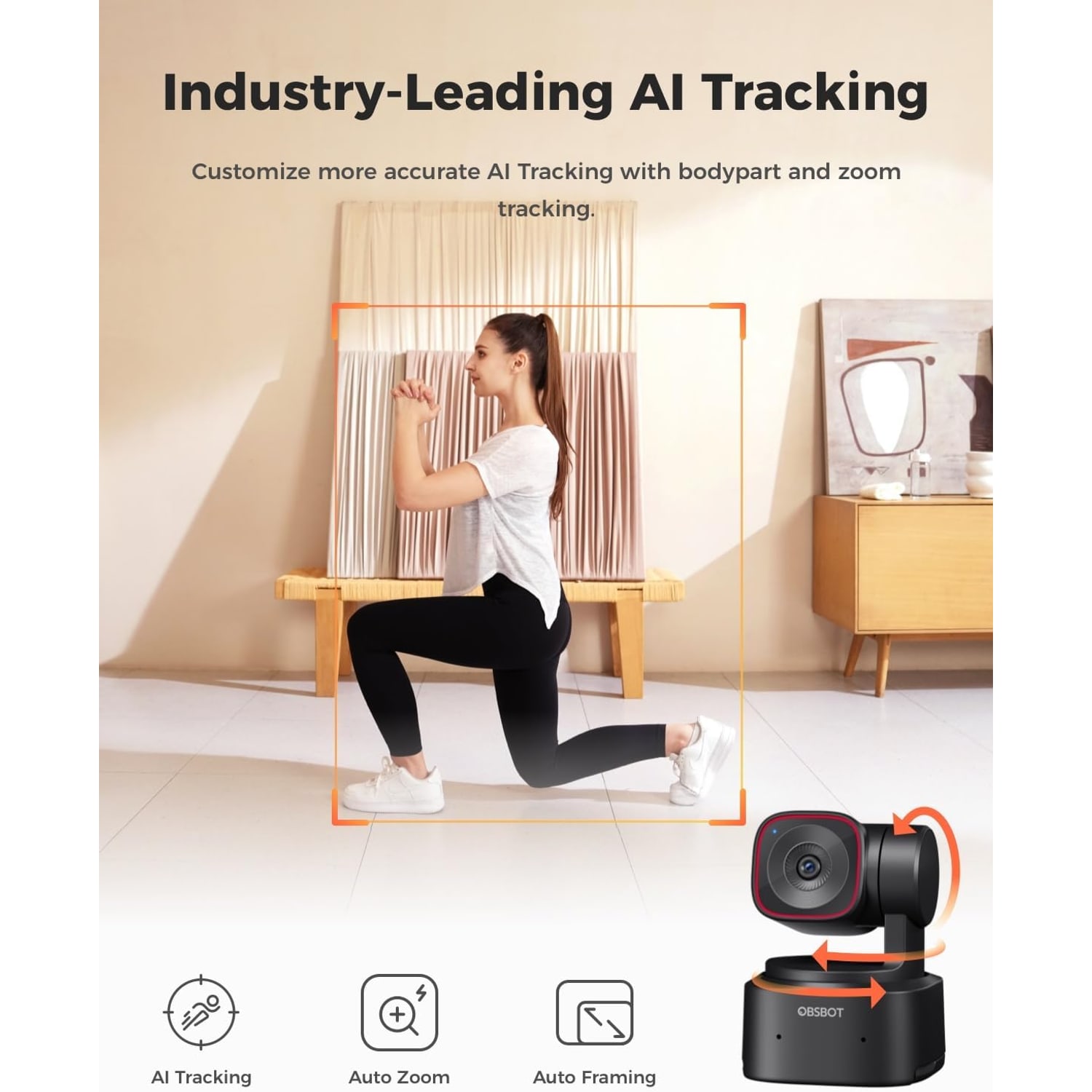
The camera looks at the frame, picks out a person, and moves the head to keep that person positioned sensibly. What makes this model more usable than a basic follow-me camera is that the behavior is adjustable.
There are several tracking modes. Upper body tracking keeps your torso and head framed, which is the right choice for most meetings and presentations. Hand tracking is more useful when you are demonstrating something, because the frame follows what your hands are doing rather than where your face is.
You can also draw boundaries. A tracking area tells the camera where it is allowed to follow, and a non-tracking area tells it what to ignore. That second one is the quiet hero. If your desk faces a hallway, or a roommate walks through the back of the room, the camera stays locked on you instead of swinging away to investigate.
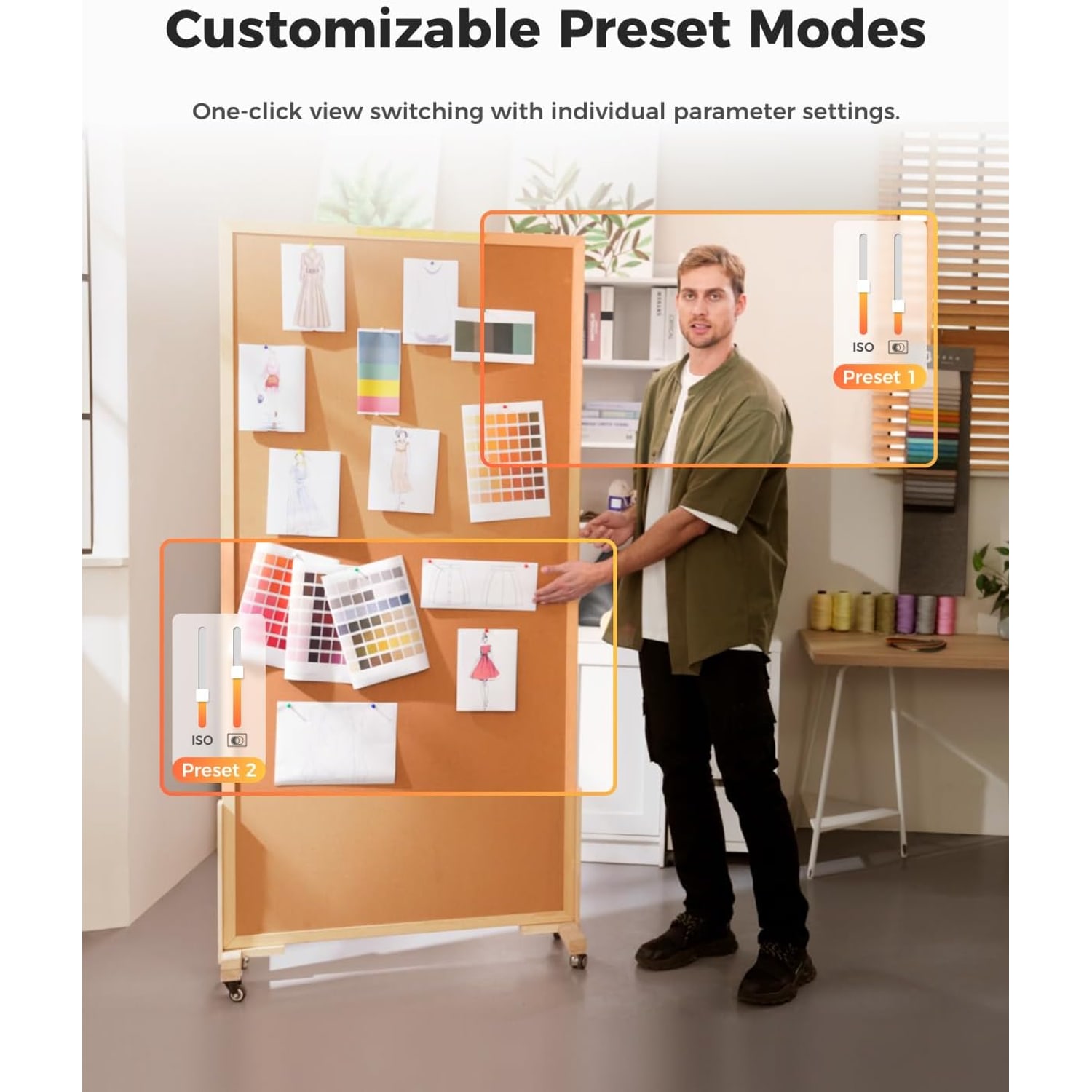
Preset positions round it out. You save a framing, and each preset remembers its own parameters and its own tracking mode. One preset might be a tight head-and-shoulders shot with upper body tracking for talking. Another might be a wider, static shot pointed at a workbench with tracking off entirely. Switching between them takes a moment instead of a minute of manual fiddling, and that matters when a class or a meeting is running live.
Gesture control, and when it earns its keep
Gesture control sounds like a feature invented for a product video. In practice it solves a specific annoyance. When you are standing away from the computer, you cannot reach the keyboard or the mouse, so any camera adjustment means walking back.
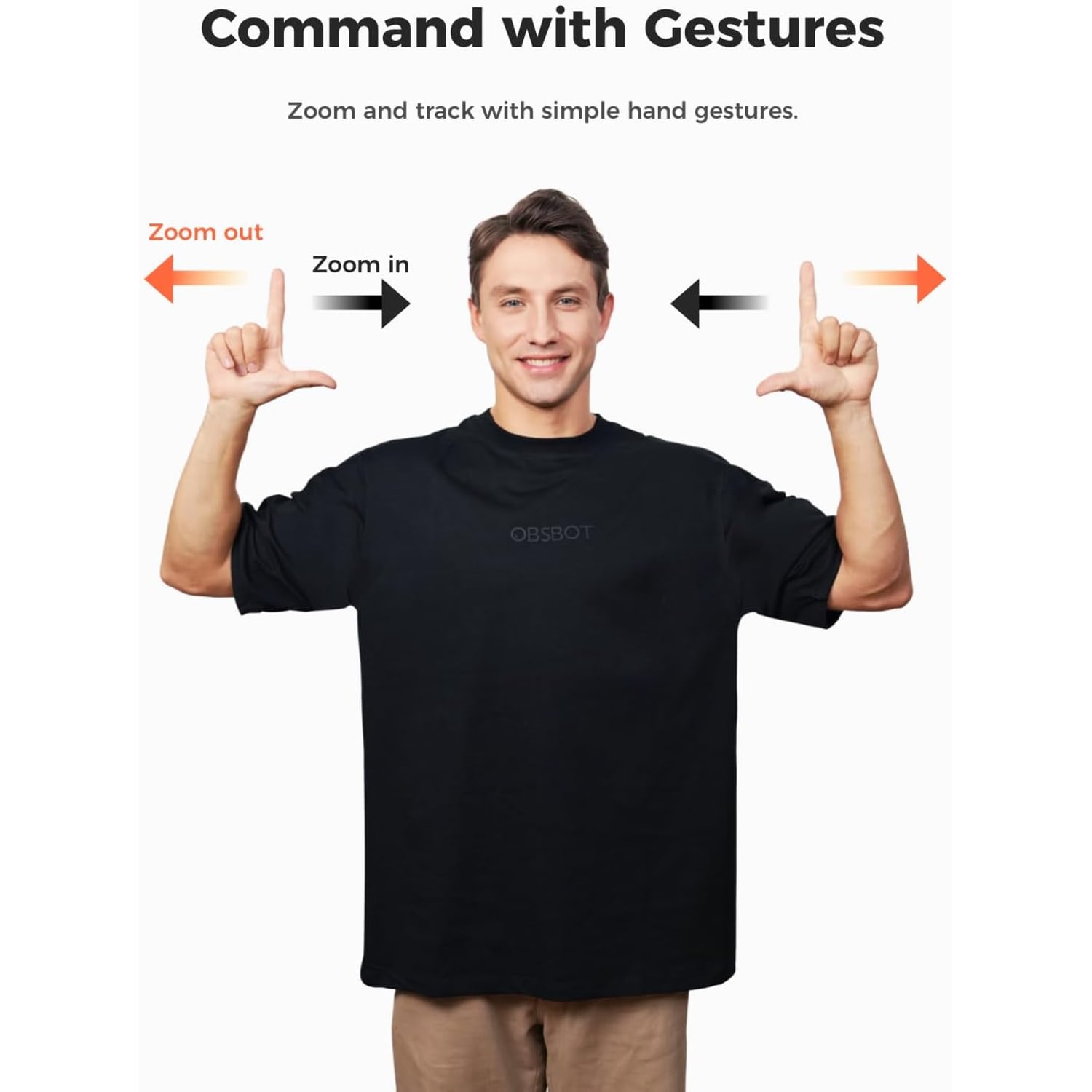
With this camera you face the lens and hold up an open hand to lock it onto you as the tracking subject. A raised finger gesture adjusts the zoom. That covers the two controls you are most likely to want mid-session. If you teach, present in a meeting room, or record anything where you move around, this is the feature you will use more than you expect.
Image quality, in plain terms
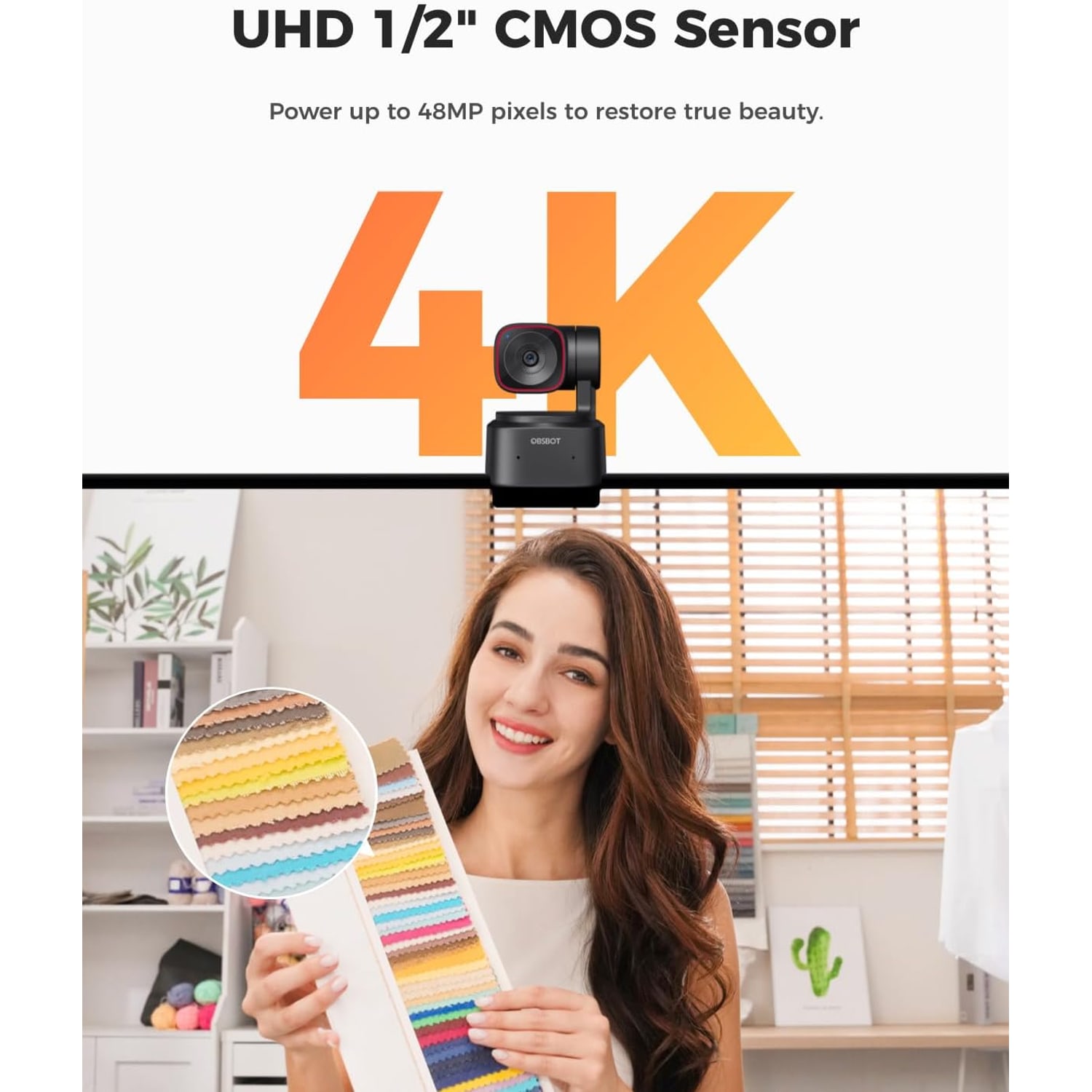
Two numbers matter most here. The sensor is 1/2 inch, and the maximum aperture is f/1.8.
Sensor size affects how much light the camera can collect. A 1/2 inch sensor is noticeably larger than what sits inside a typical small clip-on webcam, and larger sensors generally produce cleaner images in dim rooms. The f/1.8 aperture works alongside that, letting more light through the lens. If your office has one desk lamp and a window, this combination will treat you better than a budget camera will.
For resolution, you can shoot 4K at 30 FPS or 1080p at 60 FPS. Pick based on what you are doing. A still, seated interview looks excellent at 4K, where the extra detail shows in fabric, hair and text. Anything with movement, from gaming to a hands-on demonstration, generally looks better at 1080p and 60 frames per second because motion stays fluid. Plenty of people hunting for a 1080p 60fps webcam end up on 4K-capable hardware for exactly this reason, and just run it at the lower setting.
Autofocus and automatic exposure handle the rest. HDR helps when there is a bright window behind you. Digital image stabilization smooths out small knocks to the desk. Still photos come out at 8 MP effective resolution.
Who this suits
Teachers and trainers get the most obvious benefit. You can walk to a board, point at something, and the shot comes with you. Presets let you flip between a face shot and a fixed shot of your working area.
Remote workers who present a lot are next. If you spend your week in meetings where you share screens, hold up documents and gesture while you talk, a camera that keeps you centered removes a small, constant distraction.
Streamers and creators will appreciate the orientation modes and the control options. Landscape, portrait and upside-down are all supported, and the camera adapts the image to how it is placed. Portrait matters if you cut vertical video for social platforms. On the control side, SDK, OSC, Stream Deck and global hotkey support mean you can map camera actions to a physical button, which is how most serious streaming setups prefer to work.
Anyone who just wants a sharper picture than their laptop lid provides is also well served, since the camera needs no app to produce an image.
What it does not do
Worth being clear about the limits. There is no onboard storage, so everything records through your computer. There is no Wi-Fi, it is a USB-C device only. There is no flash, and it is not water resistant, so it lives indoors.
It also needs a reasonably modern machine. The stated requirements are Windows 10 or later or macOS 11 or later, with a 7th generation Intel Core i5 or newer and 8GB of RAM. Pushing 4K video over USB is real work for a computer, and an older laptop may drop frames even if the camera is capable.
One more practical note. If you plan to record other people or to record audio, that is covered by federal and state law, and the rules vary. Worth a quick check before you hit record on anything beyond your own voice.
Setting it up well
Put the camera at or slightly above eye level. A camera looking up at you is unflattering and a camera looking down makes you seem small. The top of a monitor usually works. At 250 g it is light enough that most monitor mounts and small tripods hold it steadily.
Light your face rather than your background. A lamp or window in front of you beats a bright window behind you every time, even with HDR doing its best.
Then spend ten minutes on presets. Set your default talking shot, set a wider one, and if you have a workbench or board, set that too. Draw your non-tracking area if there is anything in frame that moves and should not pull focus. Do this once and the camera will behave itself for months.
Care
The glass is the only part that really needs attention. Wipe it with a clean, dry microfiber cloth, and blow off grit first so you are not dragging dust across the coating. Skip the alcohol, the glass cleaner and the paper towel.
Unplug by the connector, not the cord. Keep it out of direct sun and off radiators. Store it somewhere dry if you are packing it away.
The short version
This is a webcam that moves. A 1/2 inch CMOS sensor and an f/1.8 lens give it a real advantage in ordinary room lighting, and 4K at 30 FPS or 1080p at 60 FPS covers both detailed and fast-moving work. The AI tracking is adjustable rather than rigid, with multiple modes, custom tracking and no-tracking areas, and presets that remember their own settings. Gesture control handles the moments you are away from the keyboard.
Setup is a single USB-C cable with no app required, and the adapter for USB-A ports is in the box. If you present, teach, stream or simply refuse to sit perfectly still for an hour, that combination is worth more than another fixed-lens camera.